

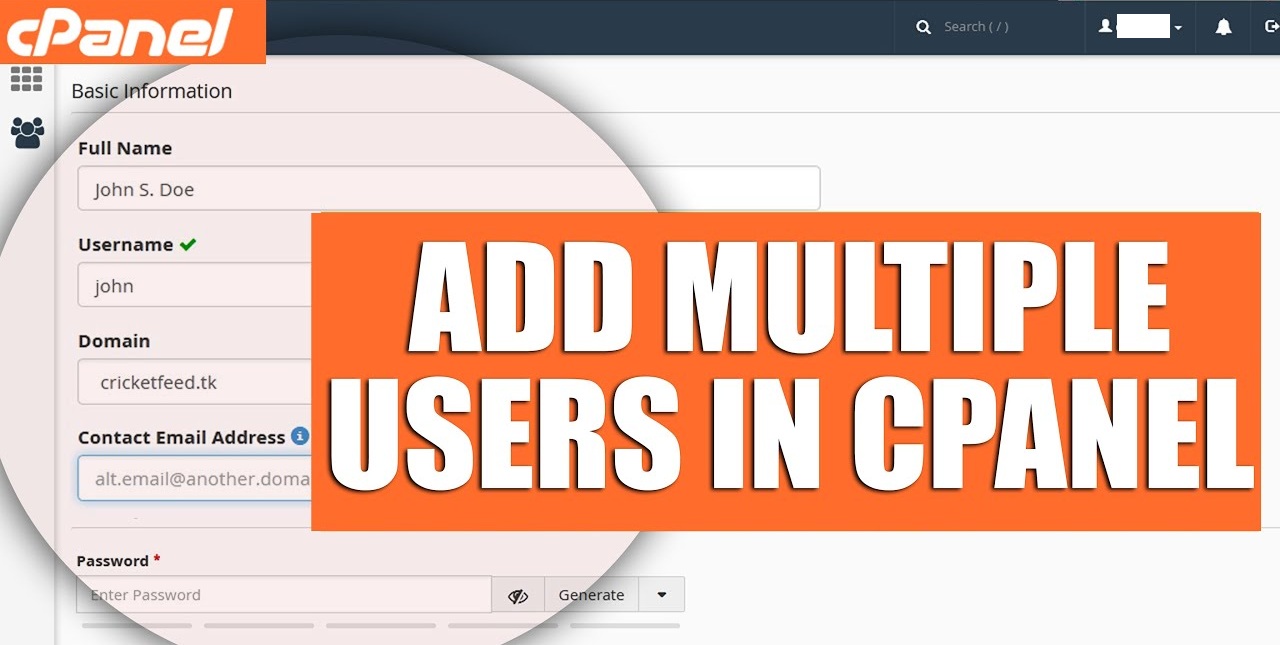
cPanel’s User Manager allows you to create additional user accounts for email, FTP, or Web Disk services. Follow these steps to add a new user:
✅ 1. Log in to cPanel
- Open your browser and go to https://yourdomain.com/cpanel or https://your-server-ip:2083.
- Enter your cPanel username and password, then click Log in.


✅ 2. Access the User Manager
- Scroll down to the Preferences section.
- Click on User Manager
✅ 3. Add a New User
- Click the Add User button.
- Fill in the user details:
- Full Name
- Username
- Domain Access (if you manage multiple domains)
- Contact Email (for password recovery and notifications)
- Choose whether to let the user create their password or set a password for them.

✅ 4. Assign User Services & Permissions
- Enable or disable services by toggling the sliders:
- Email Access → Set an inbox size limit.
- FTP Access → Limit file upload and storage size.
- Web Disk Access → Control directory access and set read/write or read-only permissions.

✅ 5. Finalize and Create the User
- Once all details and permissions are set, click the Create button.
- The new user account is now successfully created.
Using User Manager, you can efficiently manage multiple user accounts in cPanel, ensuring proper access controls for email, FTP, and Web Disk services.