

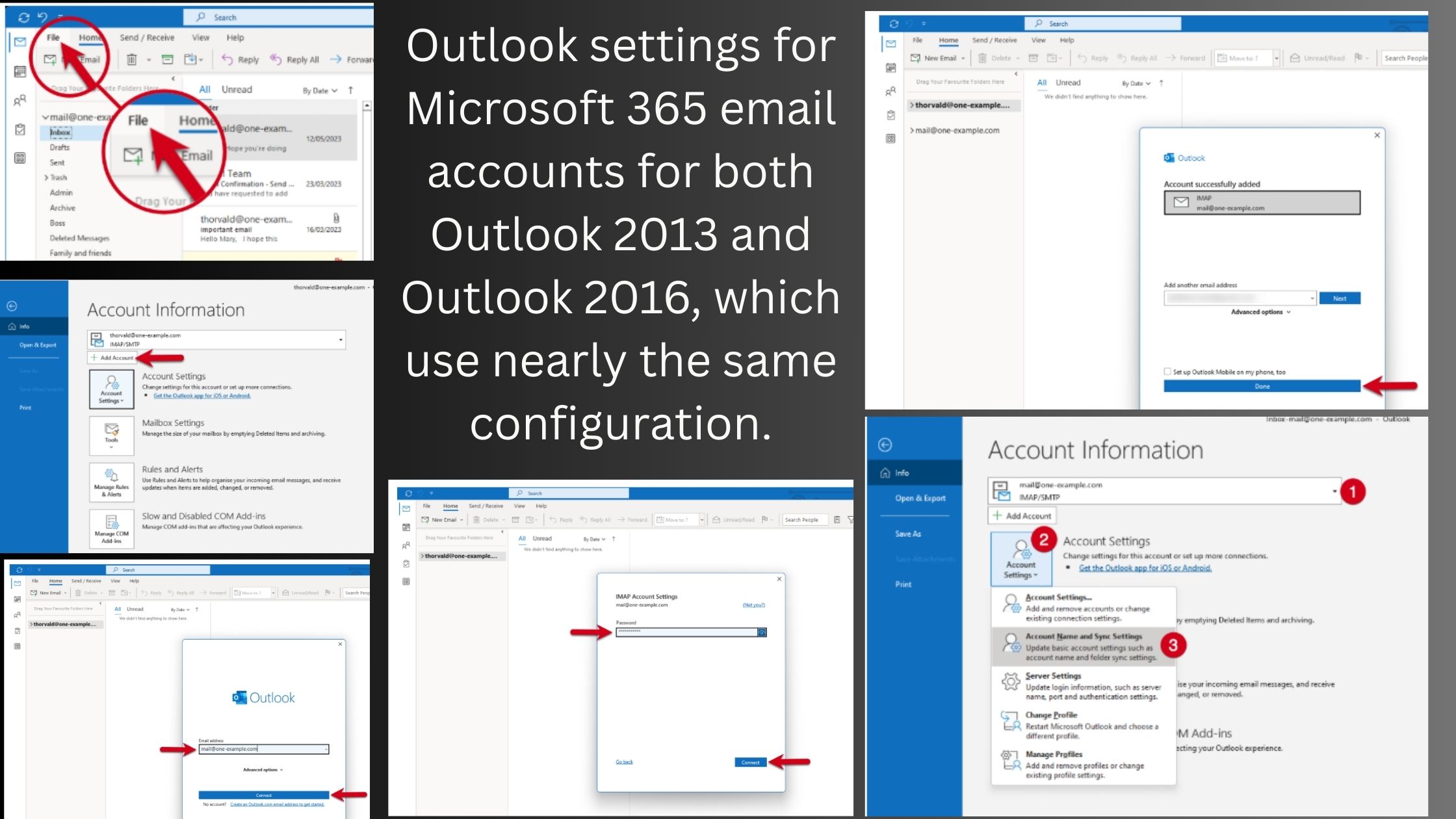
📧 Manual Outlook Settings – Microsoft 365
⚠️ Preferred Method: Use Auto Account Setup (Autodiscover) for Microsoft 365. Just enter your email and password.
If Autodiscover fails, use the manual method below:
🔹 Incoming Mail (IMAP)
| Setting | Value |
|---|---|
| Server | outlook.office365.com |
| Port | 993 |
| Encryption | SSL/TLS |
| Protocol | IMAP |
🔹 Outgoing Mail (SMTP)
| Setting | Value |
|---|---|
| Server | smtp.office365.com |
| Port | 587 |
| Encryption | STARTTLS |
| Authentication | Required |
🔹 Login Info
| Field | Value |
|---|---|
| Username | Your full email address (e.g., [email protected]) |
| Password | Your Microsoft 365 password |
| Auth Method | Normal (not OAuth in 2013 by default) |
🛠️ Steps to Configure in Outlook 2013/2016
- Open Outlook → File → Add Account
- Choose Manual setup or additional server types
- Choose POP or IMAP
- Enter your details:
- Name
- Email Address
- Account Type: IMAP
- Incoming server:
outlook.office365.com - Outgoing server:
smtp.office365.com
- Click More Settings > Outgoing Server
- Check “My outgoing server requires authentication”
- Use same settings as incoming mail server
- Click Advanced tab:
- Incoming: 993 | SSL
- Outgoing: 587 | TLS
- Save and test settings
✅ Tip: Microsoft 365 accounts can also be connected via Exchange protocol if Autodiscover is working, which enables calendar, contacts, and shared mailbox features.